Blog · Guides
How to access a remote Mac (every method compared)
SSH, Screen Sharing over an SSH tunnel, DeskIn, ToDesk, AnyDesk, RustDesk, TeamViewer, Chrome Remote Desktop and Parsec compared, with security tips.
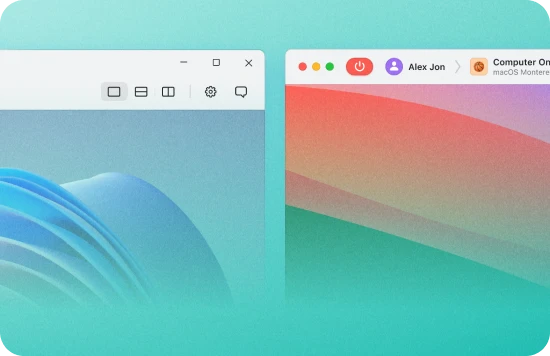
There are two ways to access a remote Mac: a terminal over SSH, or a full desktop through a screen-sharing tool. Most people need both, and this guide compares every common method so you can pick the right one for each job.
Terminal or desktop?
Start by separating two needs. Automation, CI runners, package installs, log reading and server processes such as Ollama all work over SSH, and SSH is fast even on a poor connection. Anything visual, such as Xcode's interface, Simulator, design tools or system settings, needs a remote desktop. A good setup uses SSH by default and opens a desktop only when you need to see the screen.
SSH: the foundation
macOS includes an OpenSSH server, enabled through Remote Login in System Settings. From macOS, Linux or Windows 10 and later, the ssh client is already installed.
Use keys, not passwords
Generate a key pair on your own computer and copy the public key to the Mac:
ssh-keygen -t ed25519 -C "you@laptop"
ssh-copy-id -p 22 user@your-mac-host
On Windows without ssh-copy-id, append the contents of your .pub file to ~/.ssh/authorized_keys on the Mac. Once key login works, consider disabling password authentication in the SSH server configuration.
Save time with an SSH config
Add an entry to ~/.ssh/config so you can type ssh mac instead of a long command:
Host mac
  HostName your-mac-host
  User youruser
  Port 22
  IdentityFile ~/.ssh/id_ed25519
  ServerAliveInterval 30
The same alias works with scp, rsync and editors that support remote development over SSH. For file transfer, rsync -avz ./project/ mac:~/project/ is hard to beat.
Screen Sharing (VNC), tunnelled over SSH
macOS has a built-in Screen Sharing service that speaks the VNC protocol. On a Mac client you connect with the Screen Sharing app; from Windows or Linux, a standard VNC viewer works, though some viewers handle Apple's authentication better than others.
VNC was not designed for the open internet. Never expose port 5900 publicly. Instead, forward it through SSH, which encrypts the session and keeps the VNC port closed to the world:
ssh -L 5901:localhost:5900 macLeave that running, then connect your viewer to localhost:5901. On a Mac, open vnc://localhost:5901 in Finder's Connect to Server. Screen Sharing is fine for occasional admin work. It feels slower than modern remote desktop tools over long distances, and on a headless Mac the available resolutions depend on how the machine is set up.
Remote desktop apps compared
Modern remote desktop apps use video codecs and relay servers, so they feel smoother and work through firewalls without opening ports. Each needs a small app installed on the Mac with Screen Recording and Accessibility permissions. Features below are as we understand them at the time of writing; check each vendor for current details and licence terms.
DeskIn
A remote desktop app focused on smooth, high-quality streaming. Clients for Windows, macOS, iOS and Android. It suits interactive desktop work and is popular with users in Asia.
ToDesk
Widely used in mainland China, with good connectivity there. Clients for Windows, macOS, Linux, iOS and Android, with file transfer and clipboard sync. A natural choice if you connect from China.
AnyDesk
Lightweight and responsive, with clients for Windows, macOS, Linux, iOS, Android and more. Clipboard sync and file transfer are built in. Commercial use requires a paid licence.
RustDesk
Open source, with clients for all major desktop and mobile platforms. You can use the public relay or run your own relay server, which appeals to teams that want control over where traffic goes.
TeamViewer
Long established and familiar to IT teams, with broad platform support, file transfer, multi-monitor handling and management features. Business use requires a commercial licence.
Chrome Remote Desktop
Free and simple, using your Google account and a PIN. You connect from any Chrome browser. It supports clipboard sync and basic file upload and download. Good for occasional access, with fewer controls than dedicated tools.
Parsec
Built for very low latency streaming, originally for games. It feels excellent for fluid, interactive work such as design review or 3D tools when the network allows. Some team features need a paid plan.
Comparison table
| Method | Best for | Clipboard / files | Notes |
|---|---|---|---|
| SSH | Automation, CI, servers | scp, rsync, sftp | Fastest, scriptable, no GUI |
| Screen Sharing (VNC) | Occasional admin | Clipboard; files via SSH | Tunnel over SSH, never expose |
| DeskIn | Smooth daily desktop | Yes | Popular in Asia |
| ToDesk | Connecting from China | Yes | Strong mainland connectivity |
| AnyDesk | General purpose | Yes | Licence needed for business |
| RustDesk | Self-hosted control | Yes | Open source, own relay possible |
| TeamViewer | IT-managed teams | Yes | Commercial licence for business |
| Chrome Remote Desktop | Quick, free access | Clipboard, basic files | Browser-based |
| Parsec | Lowest latency visuals | Clipboard | Best on good networks |
Latency, resolution and multiple monitors
Remote desktop quality depends mostly on round-trip latency and stable bandwidth. A few practical tips:
- Prefer a wired or strong Wi-Fi connection on your side; packet loss hurts more than low bandwidth.
- Lower the stream resolution or frame rate if the picture stutters.
- Multi-monitor support varies by tool and by how many displays the remote Mac presents. If you need a particular layout or resolution, open a support ticket and ask.
- Keep heavy work, such as builds, on the Mac and only view results remotely. Do not copy large files through the remote desktop clipboard; use rsync over SSH.
Security tips
- Use SSH keys, and disable password login once keys work.
- Enable two-factor authentication on every remote desktop account that offers it.
- Use a unique, long password for the macOS user and for each tool. Change any initial password after first login.
- Never expose VNC (port 5900) to the internet. Tunnel it over SSH.
- Remove remote desktop tools you do not use, and review their trusted devices lists.
- Keep macOS and remote access apps updated.
- Store CI secrets in your CI system or the keychain, not in plain files.
How Hatmac customers access their Mac
When you rent a Mac from Hatmac, we can set up any of these methods per machine: DeskIn, ToDesk, AnyDesk, RustDesk, TeamViewer, Chrome Remote Desktop, Parsec, SSH and Screen Sharing. After payment we set up the Mac and email you when it is ready. Your connection details then appear under My Macs in your account, showing the methods configured for that machine. You get a full macOS desktop and terminal, so you can install other tools yourself. If you need a different method added, open a support ticket.
New to remote Macs? Read Cloud Mac vs Mac VPS, see our remote Mac desktop page, or follow iOS CI/CD on a cloud Mac mini for an SSH-first workflow. Plans are listed in the pricing section.
FAQ
What is the best way to access a remote Mac?
Use SSH for terminal work and automation, and a remote desktop app for visual work. Which app is best depends on where you connect from and how smooth the picture needs to be.
Is it safe to use VNC over the internet?
Not directly. Tunnel Screen Sharing through SSH so the session is encrypted and the VNC port stays closed.
Where do I find my Hatmac Mac's login details?
Under My Macs in your account, once we have set up the machine and emailed you.